Write the spec like a regular doc. Free to start, no credit card.
By continuing, you agree to the Terms of Use and acknowledge the Privacy Policy. Analytics choices are separate.
the specgit blog
Now in specgit: Group together, one review for related docs
· the specgit team
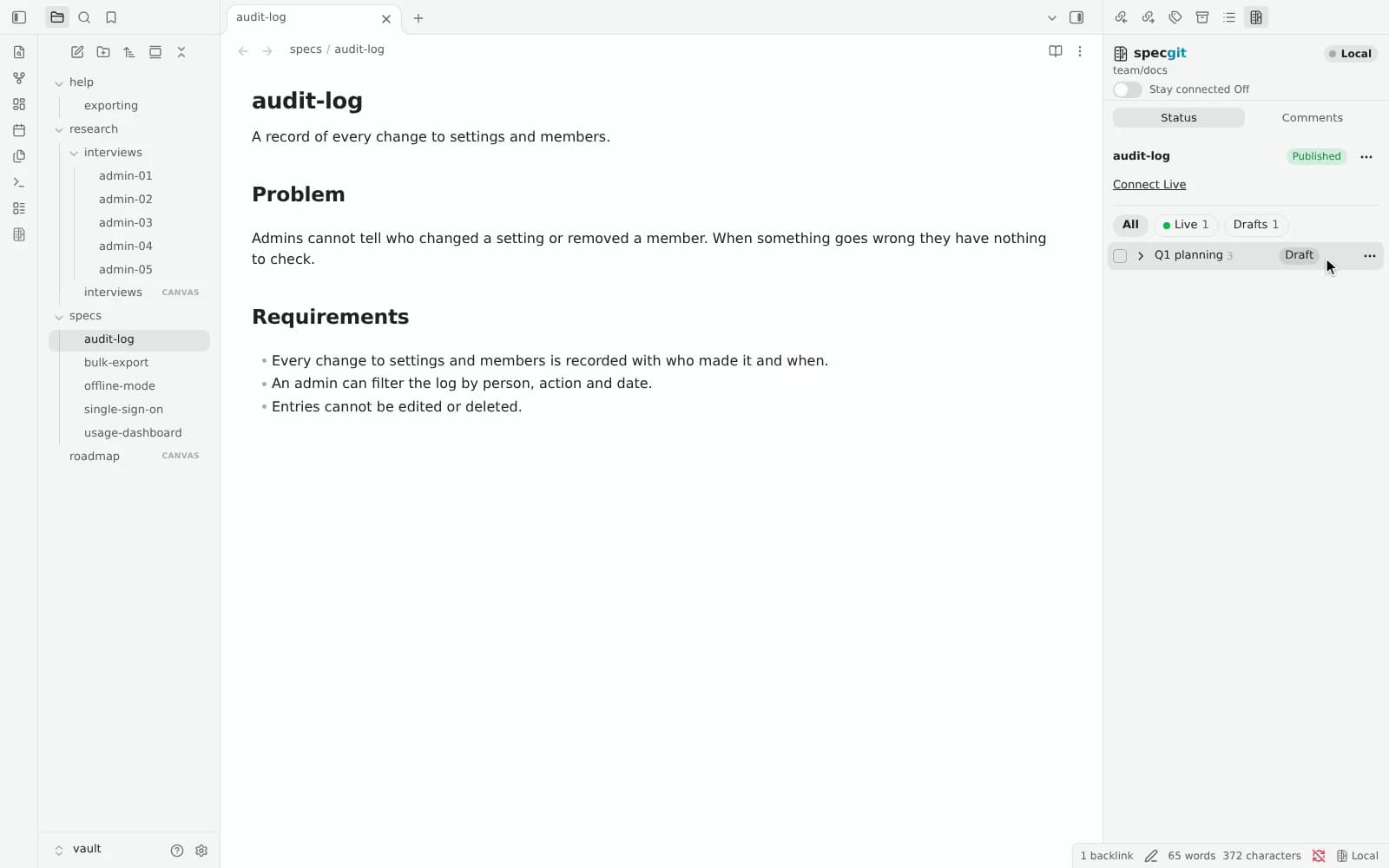
Ship related docs together
Open the Status panel on any repository with two or more drafts, check the files that belong together, and click Group together.
By continuing, you agree to the Terms of Use and acknowledge the Privacy Policy. Analytics choices are separate.
See plans & pricingFree to start, no credit card. Zero Content Retention: we never keep a copy.
Get started · See pricing · Introducing specgit for Obsidian
Real product updates rarely touch a single file. Launching a new feature changes the pricing page, the FAQ, the help guide, and the release notes at the same time. Reviewing and publishing those four files separately meant four notifications for your reviewer, four approvals, and a window where half the update was live while the rest waited.
Today we're launching Group together alongside our shared Status panel across specgit.com and specgit for Obsidian. Check any two or more changed files, click Group together, give the group a name, and send the whole set to review and publish as one.
Group together is available on Pro and Pro Plus, in the browser and inside Obsidian. A group counts as one publish, no matter how many files are in it.
How a group moves from draft to published
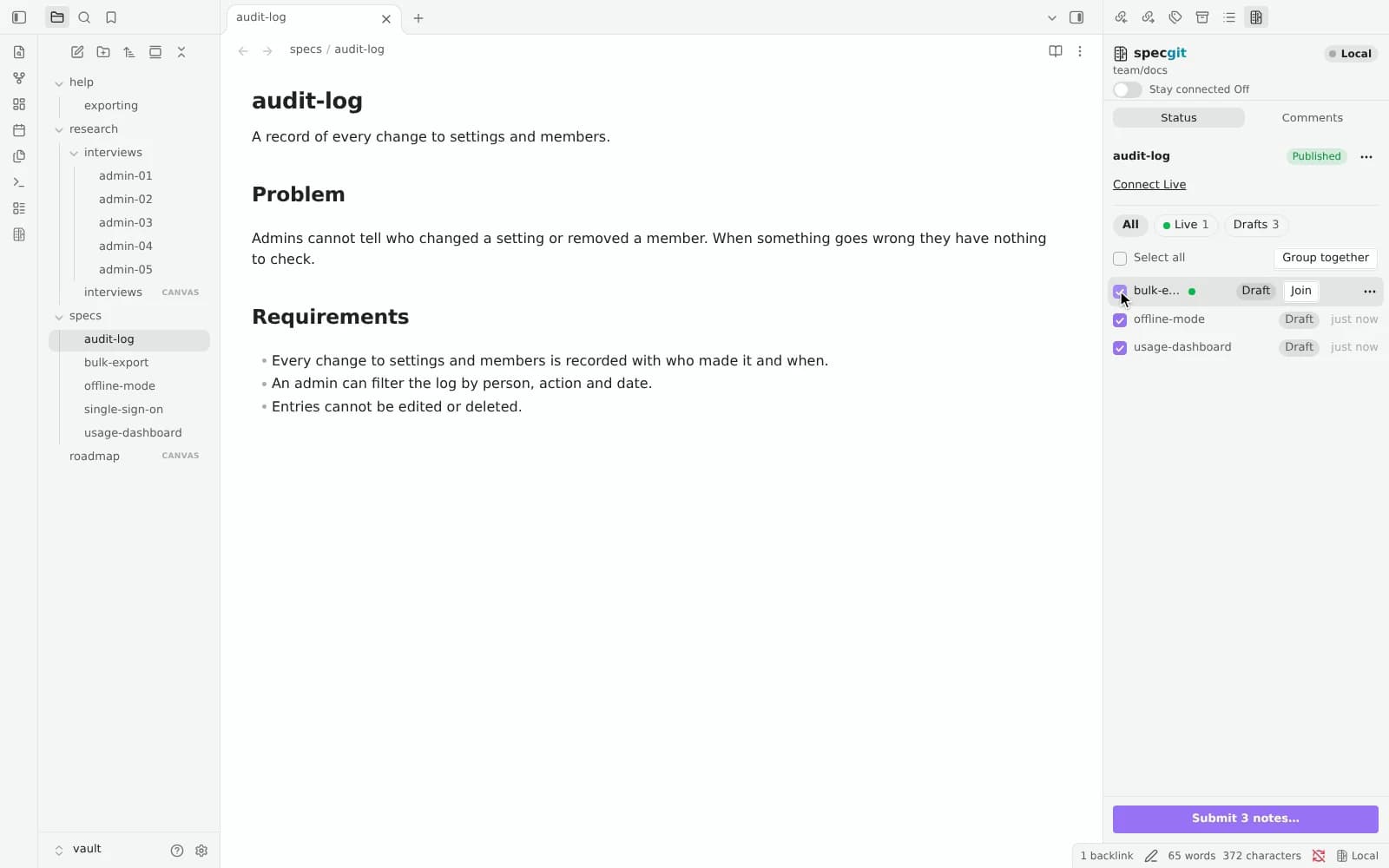
Say you're a technical writer preparing a Q1 planning update across three specs: usage-dashboard, offline-mode, and bulk-export. You've edited all three, either in Obsidian or on specgit.com. Open the Status panel on the right. Each file appears as a row with its state beside it.
Check the three boxes (or use Select all), then click Group together, type Q1 planning, and press Enter. The three files fold into one group row reading Q1 planning 3.
When you're ready, select Submit 3 documents… (or Submit 3 notes… in Obsidian), add your reviewers, and click Submit. All three files go to review in one pull request (GitHub's name for a set of changes reviewed together). Your reviewer gets one GitHub notification, opens the group in specgit (or on GitHub), reads every file, leaves inline comments where needed, and approves once. Click Publish, and all three files go live together in one merge.
Nothing is locked in until you publish
Grouping changes how files go to review without trapping your edits. Each document keeps its own draft until the group is published, and you can adjust the set at any point before publishing:
- Add more files: check a group and any ungrouped drafts, then click Add N to group (or Add N to… when you have more than one group) to bring them into the same review.
- Take one file out: expand the group and open the file's ⋯ menu to take it out of the group. That file goes back to its own draft with every edit intact.
- Ungroup: open the group's ⋯ menu and choose Ungroup to split the review back into individual files. Nothing is lost.
- Handle conflicts cleanly: if a file in the group changed on GitHub while you were editing, the group shows Changed in both or Held in red and asks you what to keep before anything publishes.
One Status panel everywhere
Group together sits inside the same Status panel we now share across a document, a Canvas board, the repository page, and specgit for Obsidian. Everywhere you open it, the panel speaks the same words: one state badge per file, filter chips for All, Live, To approve, To publish, and Drafts, and one primary footer button naming the next step and the count.
Live events and awareness ship alongside it. Filter the repository page by Live to see who is editing a document right now and by Unpublished changes to see whose drafts are open; comments, approvals, and publishes arrive on open pages and Obsidian vaults without a reload.
Plans and availability
Creating a group or adding files to one requires Pro ($8 per seat a month) or Pro Plus ($16 per seat a month) on the account that owns the repository. On the Free plan, the control stays visible and links to the plans so teammates know it exists. If an account moves back to Free later, every existing group keeps every way out: you can still publish it, take a file out, rename it, or ungroup it without losing anything.
Zero Content Retention still holds for every file in a group: we never keep a copy of your documents or comments, and GitHub remains the source of truth.
See plans and pricing · Read the Obsidian plugin announcement · Try specgit on a sample doc
More from the blog
- Introducing specgit for Obsidian: your whole team in your vault
- Introducing Writing mode: a woodshed for your words
- Your Obsidian vault, edited together, exactly as you wrote it
- Introducing Canvas: your whole team on the board
- specgit is now available on Microsoft Marketplace
- User insights belong in the repo
- Why product specs go stale (and what keeps them current)
- Notion vs GitHub for product specs
- PRD chatbot vs docs in the repo
- All posts