Write the spec like a regular doc — free to start, no credit card.
the specgit blog
Introducing Canvas in specgit
· Bryan Levy, specgit
Keep the spec next to the code
Write like a normal doc in GitHub. Saves are commits, comments are PR threads, publish is a merge — free to start.
Free to start, no credit card. Zero Content Retention — we never keep a copy.
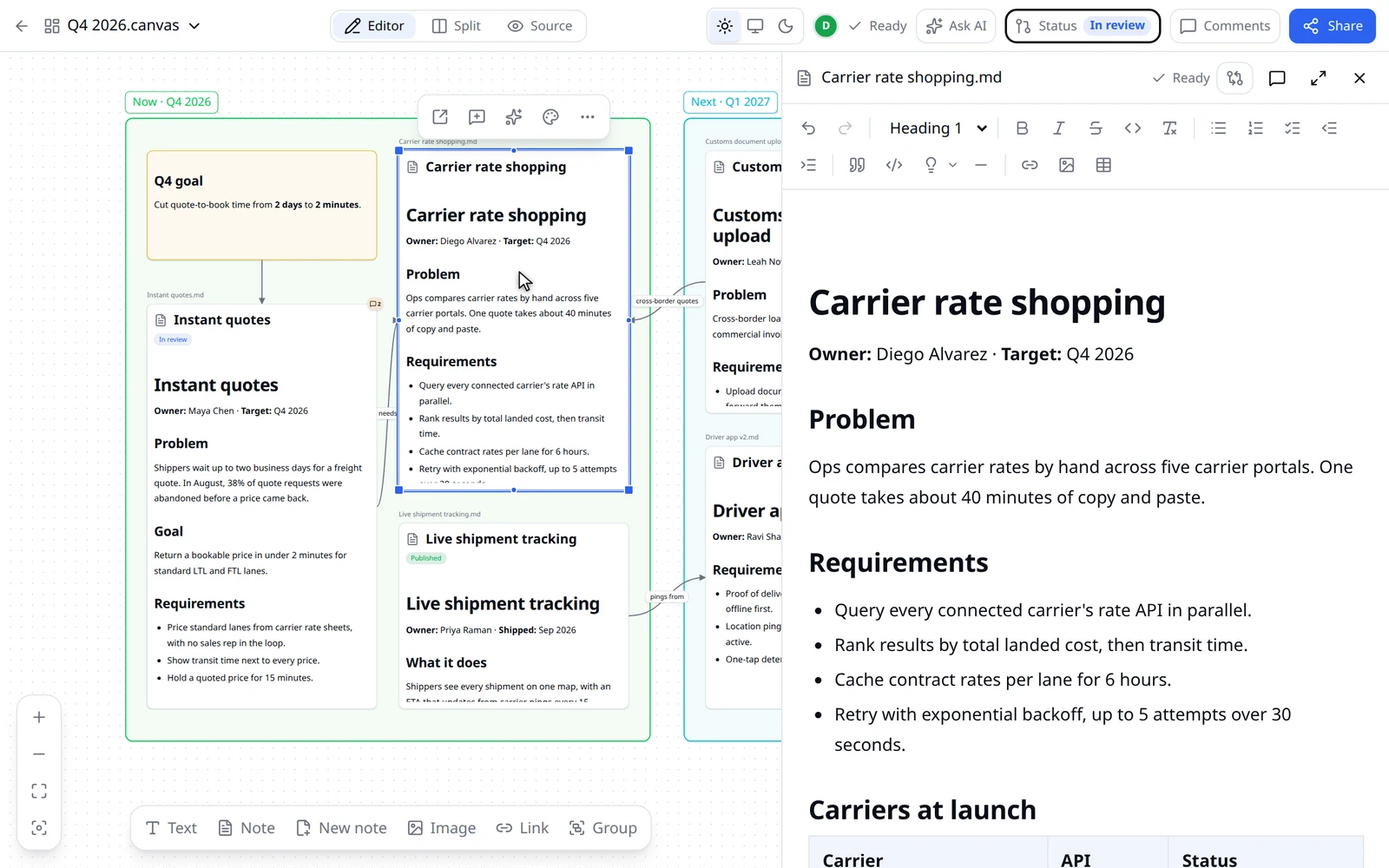
Canvas brings your Obsidian Canvas boards into specgit. Open a board in the browser, click any note to edit it beside the map, and review the board and every note on it together. Everything saves straight to your GitHub repo, in the exact format Obsidian wrote.
Boards are how a lot of teams think: a roadmap laid out as specs, a research map of interview notes, an architecture sketch with arrows between services. Until now, working on that map meant opening Obsidian. With Canvas, the whole team can open the board, edit the notes on it, comment on any card, and publish changes through the same pull requests engineers already review.
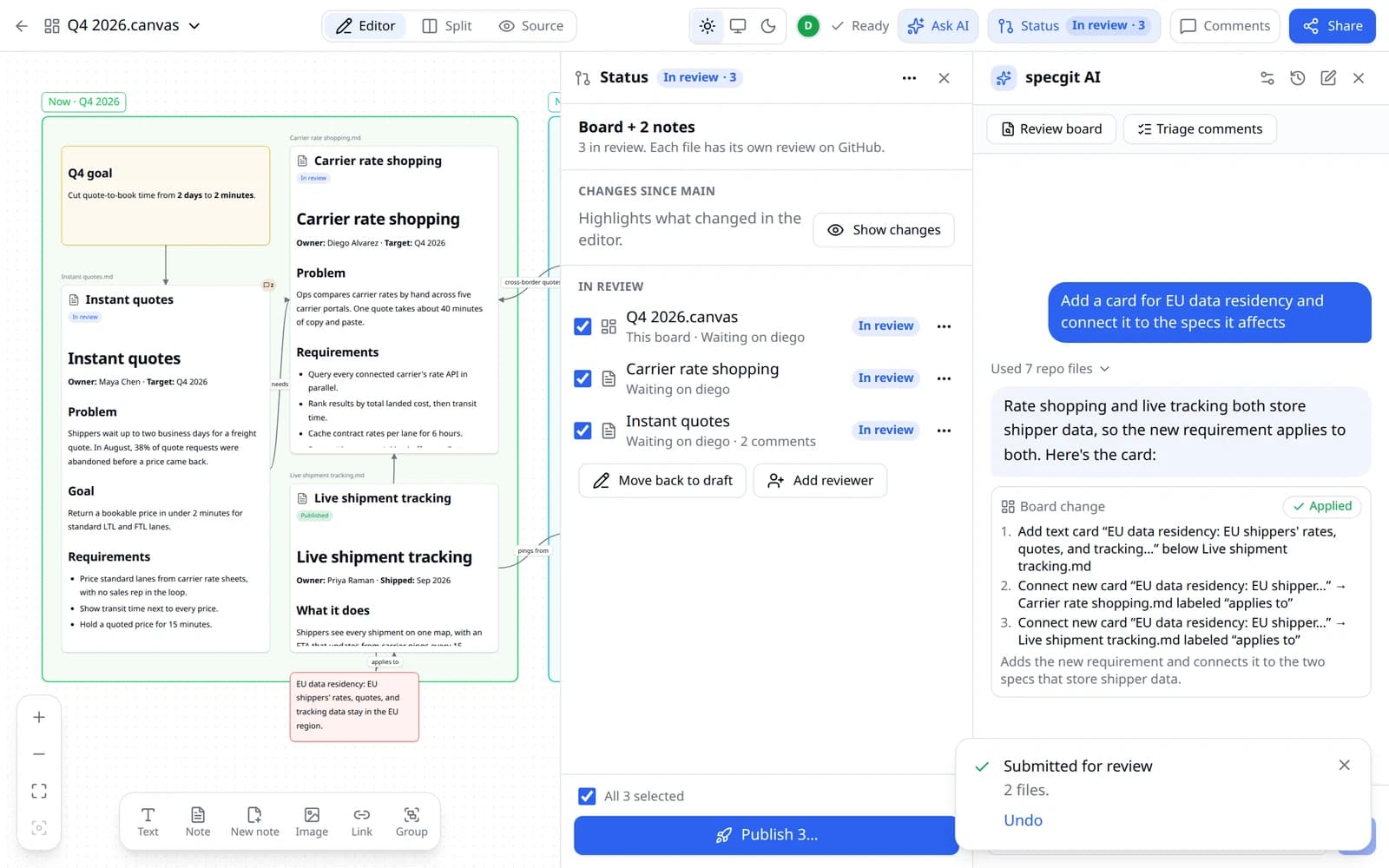
specgit AI works on boards too. Now running on Grok 4.7, it reads every card, group, and arrow on the board, along with the notes behind them, and proposes changes for you to approve.
Canvas is available today on every specgit plan, including Free. specgit AI on boards is included with Pro and Pro Plus. Today we're also releasing Repo context for specgit AI, comments that carry across every revision of a document, and a folder tree for getting around your repo.
Your board, in the browser
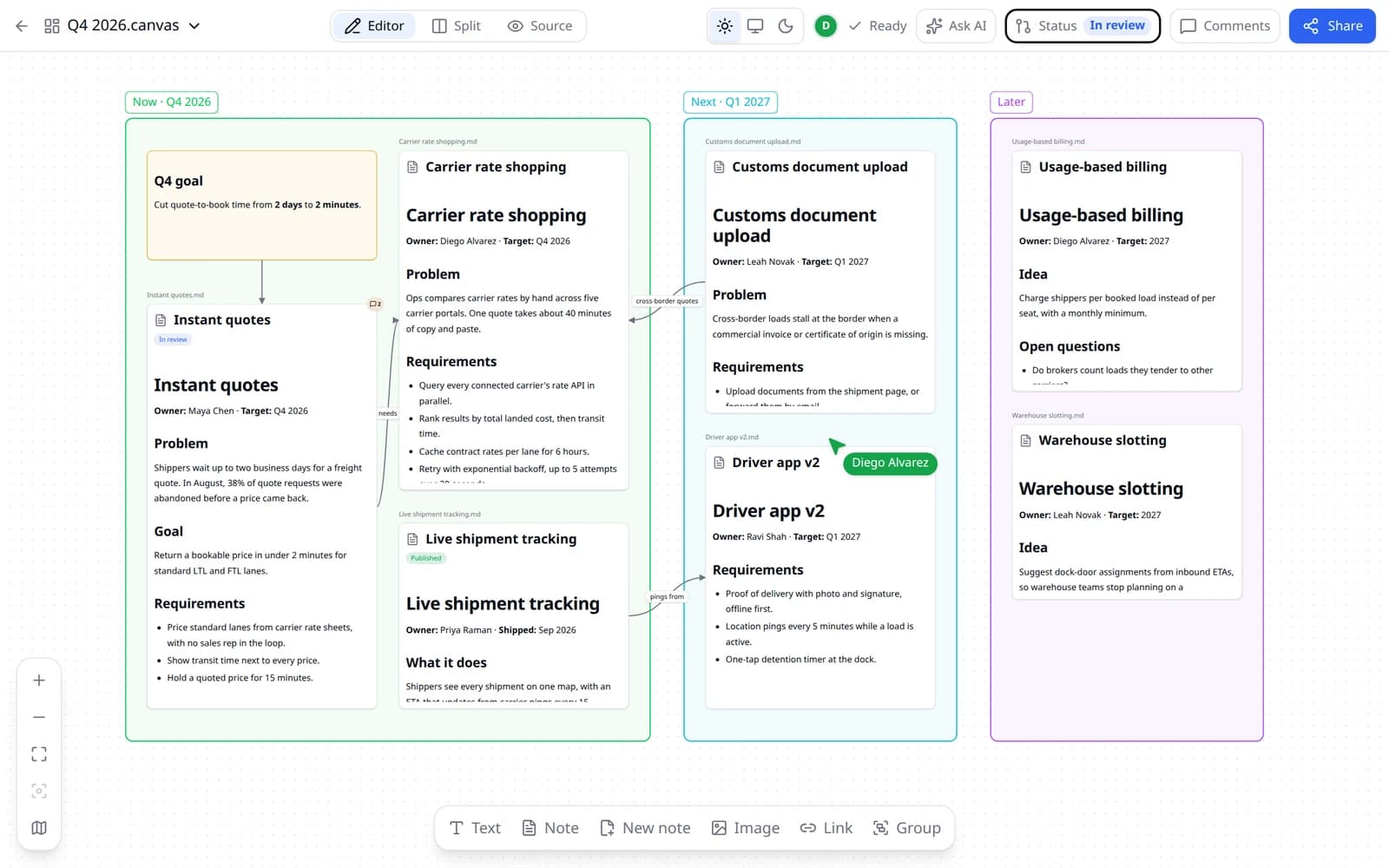
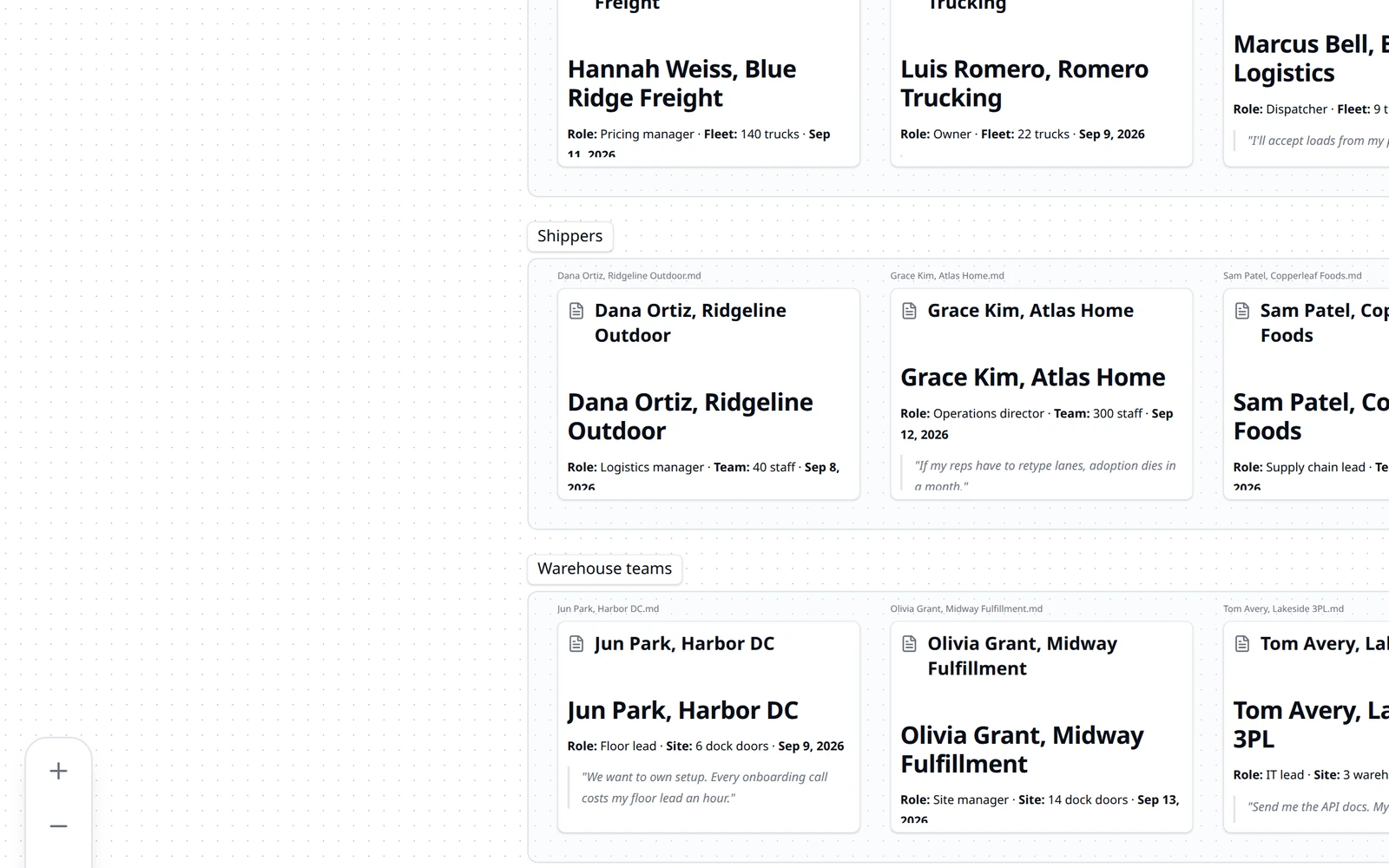
Boards work the way you expect from Obsidian. Drag cards, draw labeled arrows, group related notes, color-code them, and edit text cards in place. Paste or drop an image and it lands on the board. Starting from scratch? Lay out a folder turns every note in any folder of your vault into a card, with each subfolder as its own group.
Click a note card and the note opens beside the board with everything specgit's editor has: autosave, comments, properties, and Changes. A link in the note to another card pans straight to that card. On a phone, the note opens full screen with Back to board.
specgit writes the board back in Obsidian's own format. Cards you didn't touch stay byte for byte, and moving a card changes one line in the commit. Teammates who live in Obsidian keep working there, with no reformatted files.
Boards are built for teams. Teammates edit together live, with cursors and a marker on whoever is editing each card. Comments attach to cards and are real GitHub pull request review threads. When the work is ready, the board's Status panel publishes the board and its notes together: the notes first and the board last, so your main branch never has a card pointing at a note that isn't there yet.
What teams do with Canvas
Plan a roadmap on one board
You're a product manager, and your roadmap is a board of spec notes. A new requirement comes in. Open the board, click the spec it affects, and edit it beside the map. Ask specgit AI to add a card for the requirement and connect it to the specs it affects. Then open Status, add a reviewer, and submit the board and every spec you touched in one step. Each file gets its own pull request, your reviewer gets a GitHub notification, and you publish the whole set when it's approved.
Make sense of research
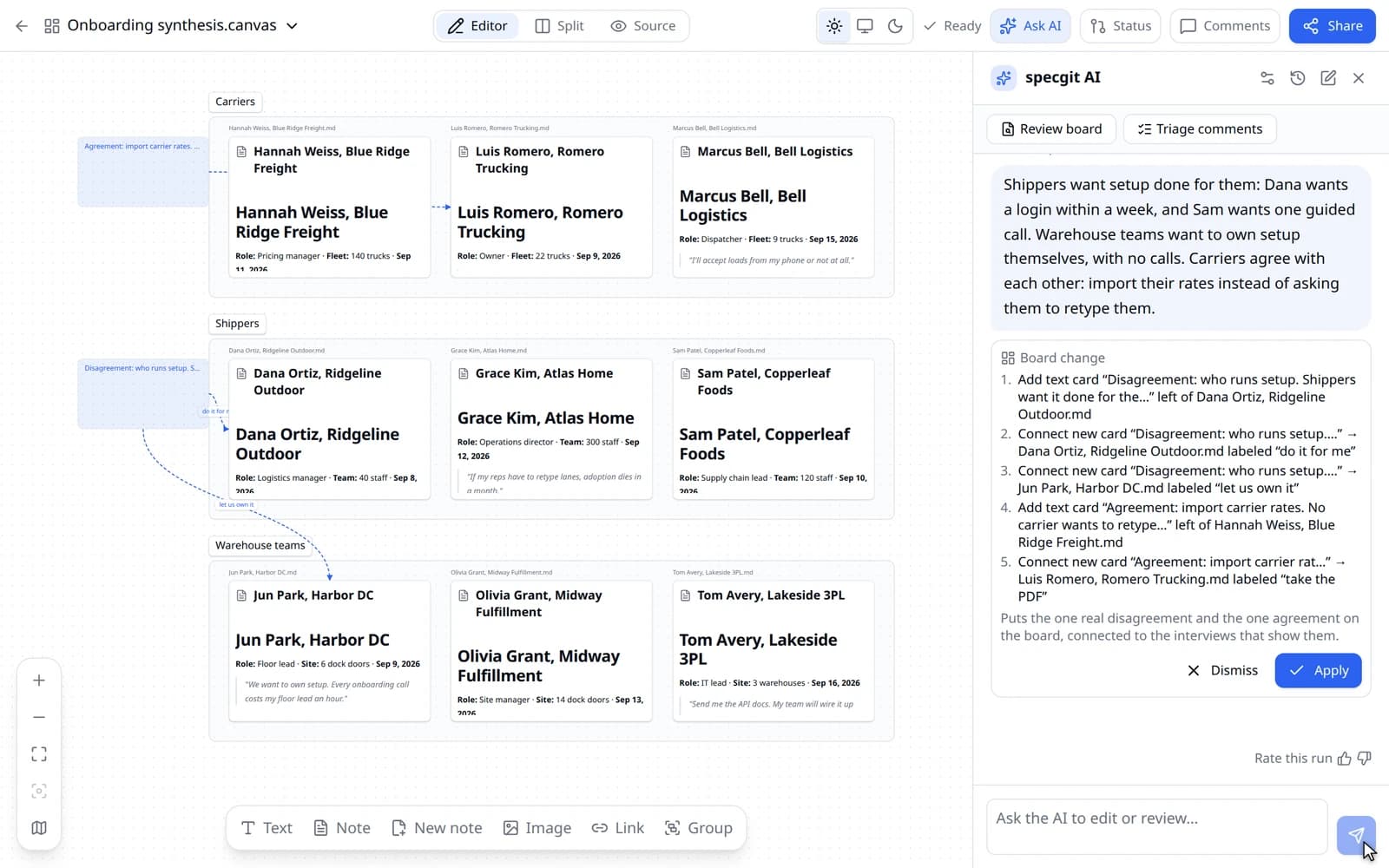
You're a researcher with a folder of interview notes. Lay out a folder puts every note on a board, grouped by subfolder. Ask specgit AI where the interviews disagree, and it puts the disagreement on the board as a card connected to the interviews behind it. Teammates comment right on the cards, and each thread stays tied to its card as the board changes.
Keep an architecture board current
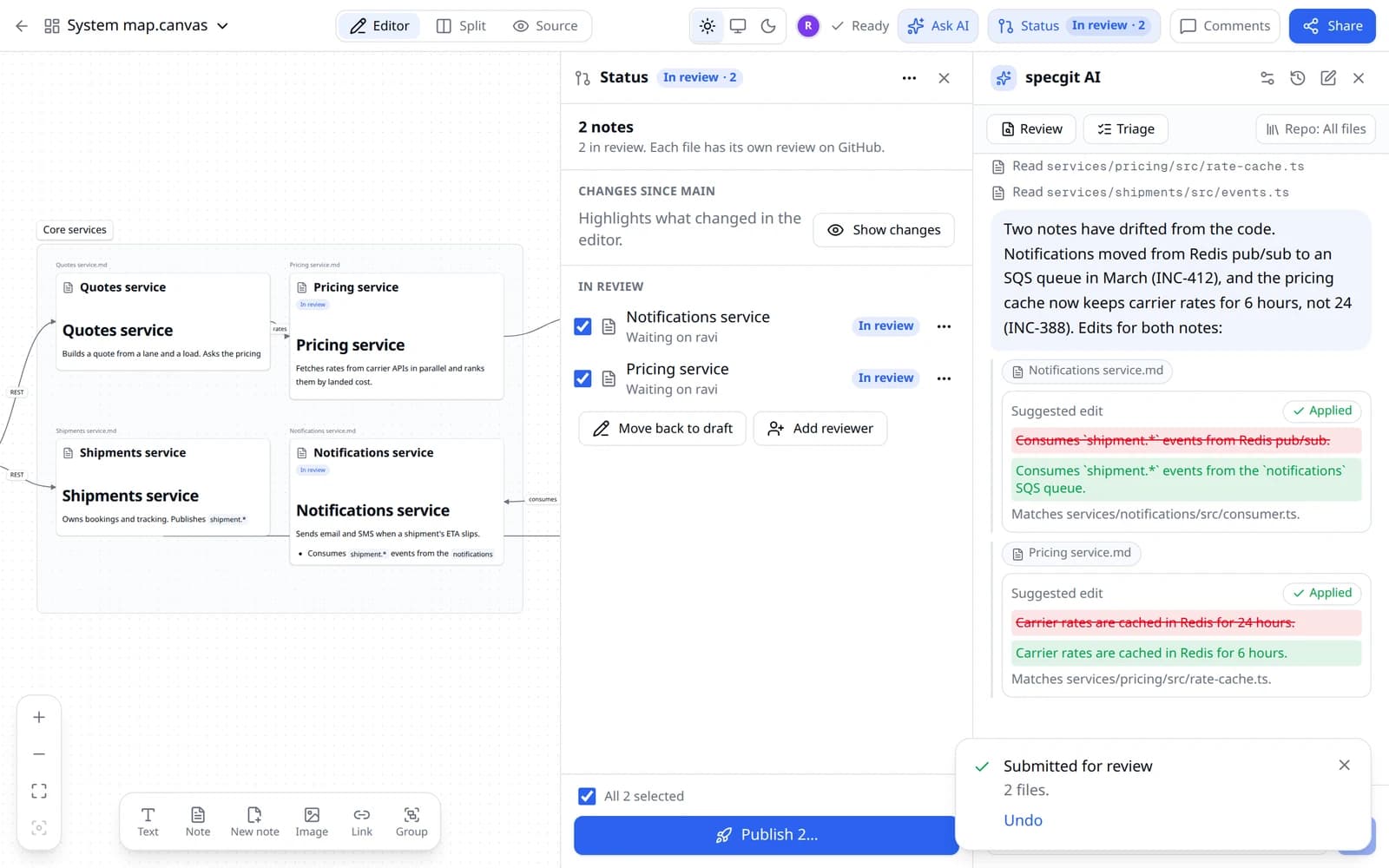
You're an engineer, and the board maps your services with a note behind each one. Turn on Repo context with All files and ask specgit AI to check each note against the code. It reads the code and proposes an edit in every note that has drifted. You approve them one at a time, each note opens beside the board with the change in place, and you send both notes to review from Status.
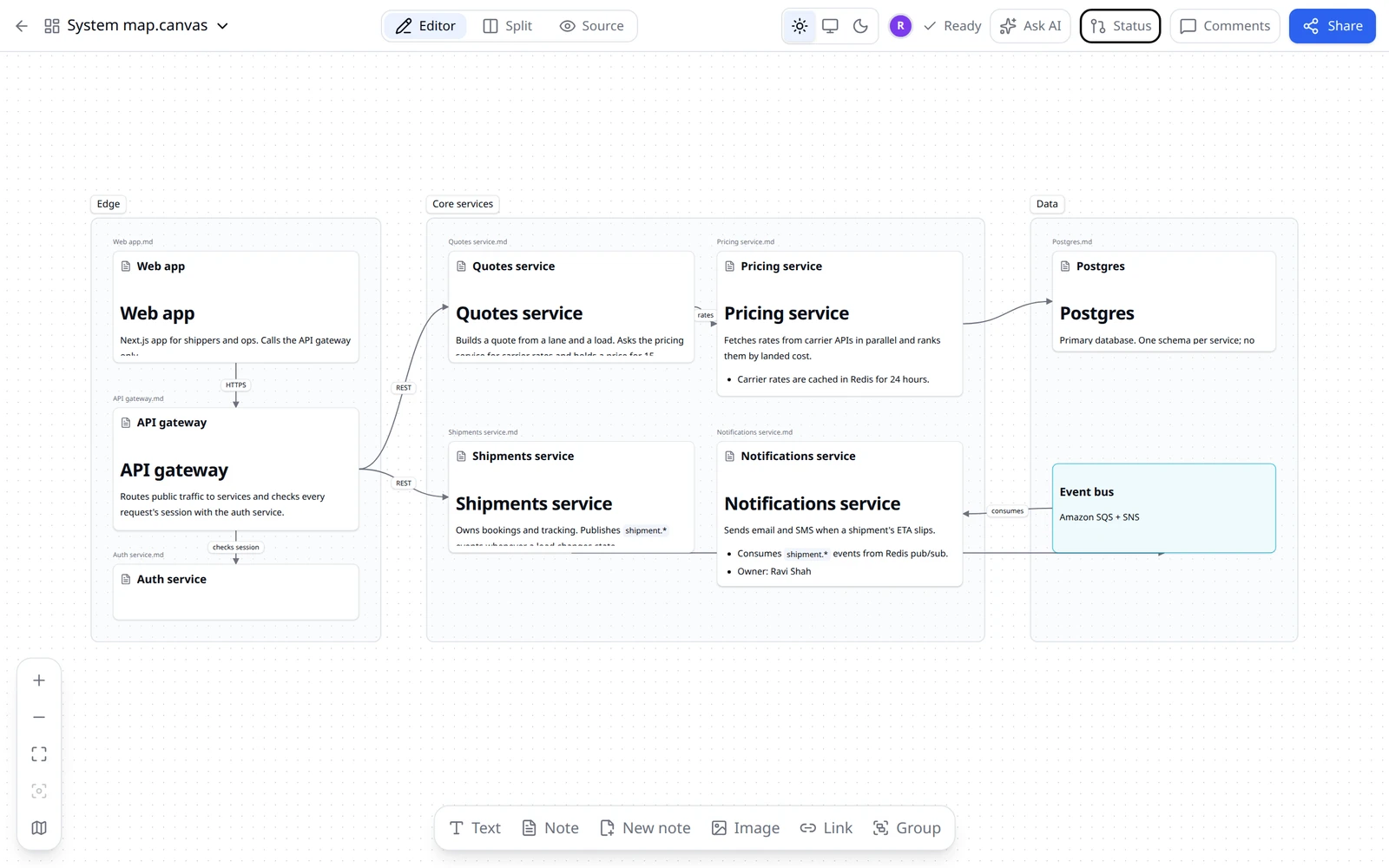
Review a spec over several rounds
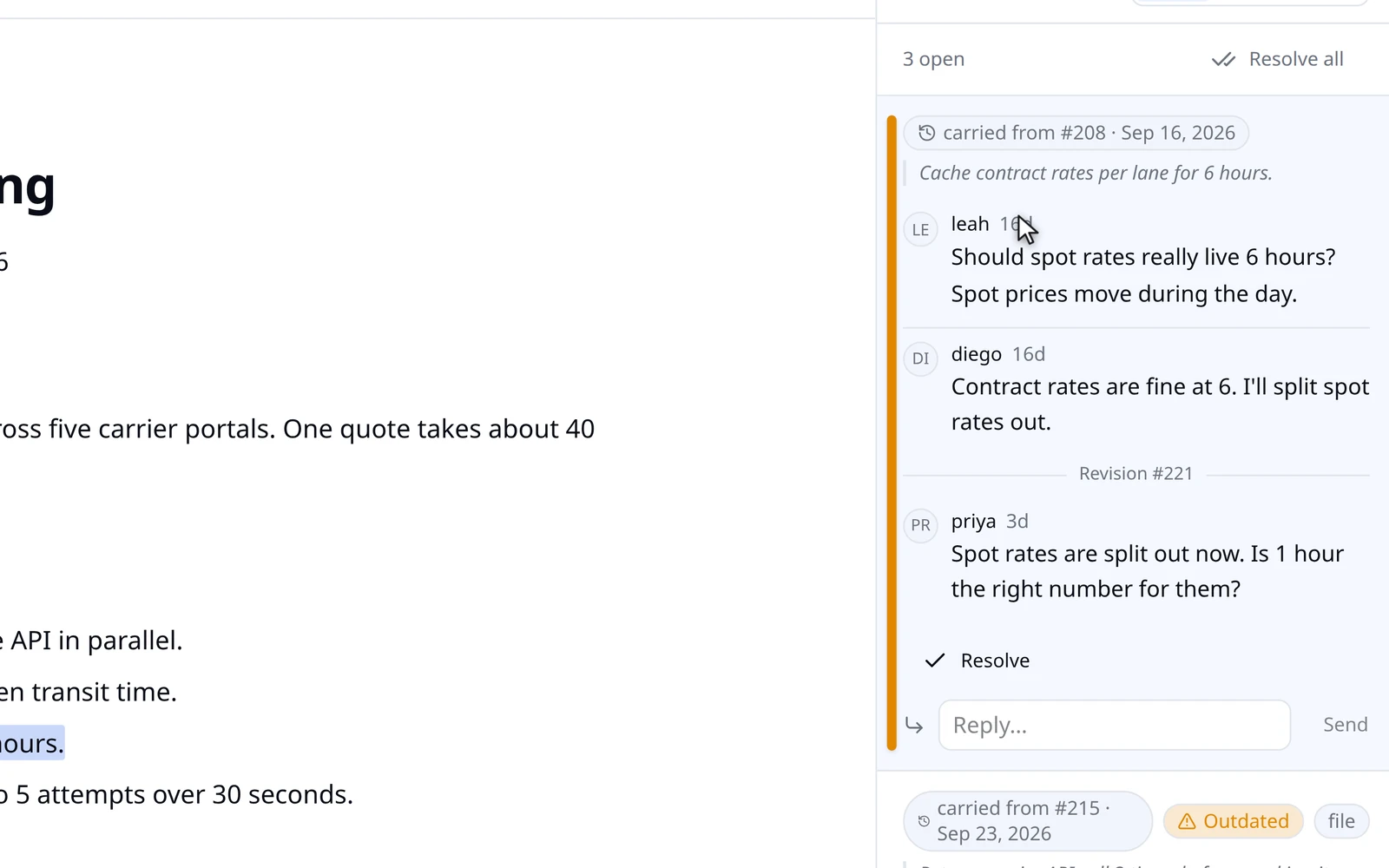
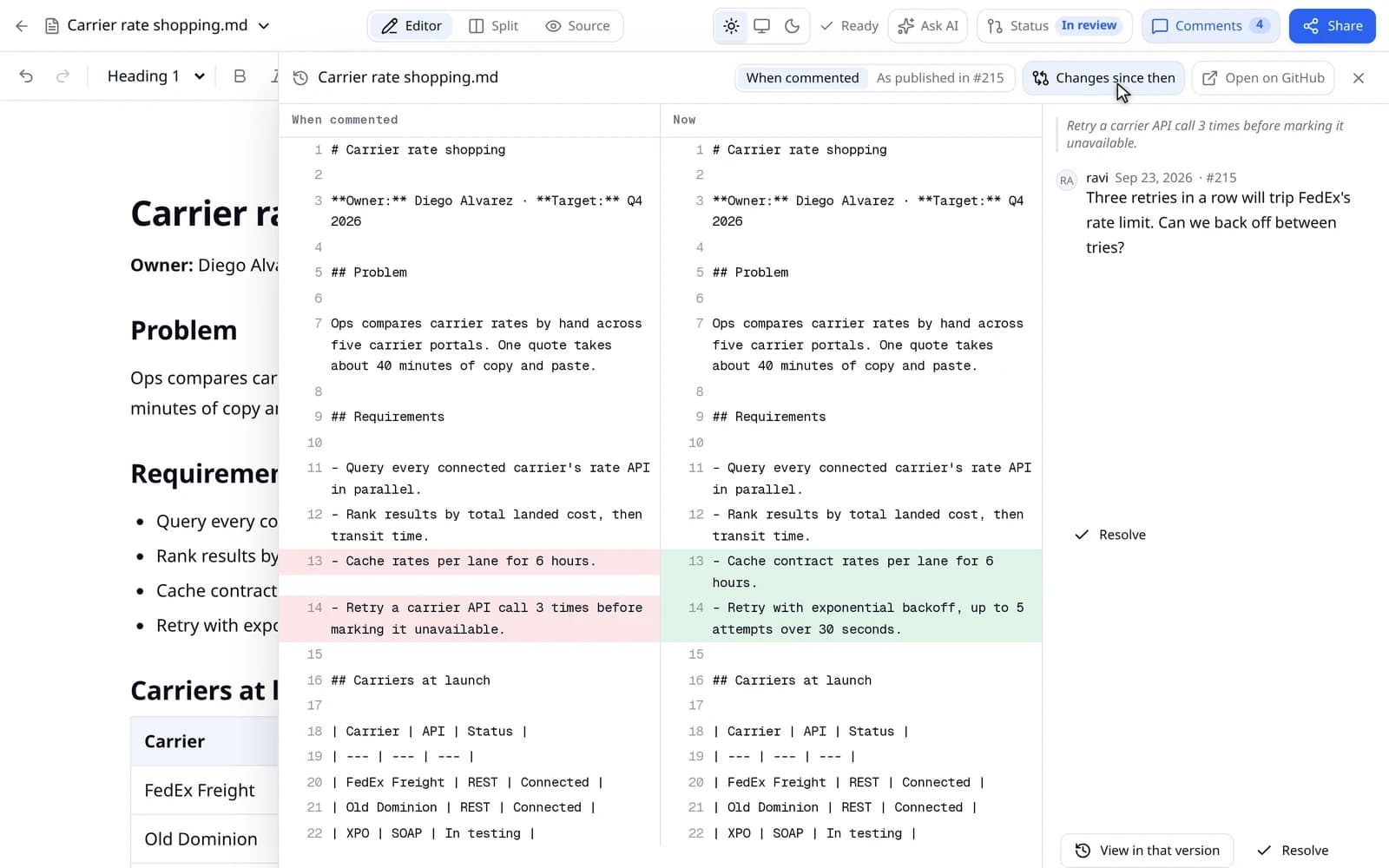
You're a tech lead reviewing a spec that goes through three revisions. The comments you leave stay open into the next revision, still attached to the text they were about. Resolved threads stay visible by revision, and View in that version shows the spec exactly as it was when someone commented.
specgit AI works the board with you
specgit AI reads the board the way you do: every card, group, and arrow label in reading order, plus the notes on the board. Ask it to add cards, connect ideas, or regroup a section, and the proposed change shows up as ghost cards on the board until you apply or dismiss it. Ask it to fix something across several notes, and it proposes each edit in the note where it belongs.
With Repo context on, specgit AI can also read other files in your repo for background, from other docs to code and config.
You're always in control
Every change is yours to approve
specgit AI runs only when you ask it to. Every board change and every note edit arrives as a proposal, and nothing changes until you approve it. On a board, specgit AI can add, connect, and group cards. It can't delete them.
specgit never keeps a copy
Your boards and notes live in your GitHub repo, and specgit never keeps a copy. When specgit AI reads notes or repo files, it reads them from GitHub for that request only. Repo context is off by default, and Documents keeps code out of reach. xAI Zero Data Retention is enabled for specgit, so xAI doesn't keep API inputs or outputs and never trains on them. The details are on privacy and security.
Access follows GitHub
Everyone signs in with their own GitHub account, and every save is a commit under their name. People without write access to the repo get a read-only board. Reviews and approvals follow your repo's branch rules, the same as code.
More in this release
Status, one click away
The Status button in the top bar shows where a document or board stands: In progress, In review, Waiting on review, Ready to publish, or Conflicts. Click it to see the files in the review, what changed, and the next step. Submit lets you add reviewers, and GitHub notifies them. Changed your mind? Undo right after you submit, or Move back to draft any time before it's published. On a board, every file in the set has its own row and state, and the footer acts on the files you check.
Ask AI, Status, and Comments now open as separate panels, side by side, and each one resizes and remembers its width. Share shows the link it copies, along with a README badge and links to the file and its review on GitHub.
Available on all plans.
Grok 4.7 in specgit AI
specgit AI now runs on Grok 4.7, the newest Grok model. Replies read more like a teammate's review: the finding first, in plain prose.
Available wherever you use specgit AI.
Repo context
A new setting in the AI panel lets specgit AI read other files in your repo for background. Choose Documents for other Markdown and HTML docs, or All files to include code and config. Type @ to point it at a specific file.
Available on Pro and Pro Plus. Learn more
Comments that carry across revisions
Open conversations carry forward to each new revision of a document, still open and still anchored to the text they were about. Resolved comments stay visible, grouped by revision. View in that version opens the document as it was when the comment was made, and Resolve all closes every open conversation in one step.
Available on all plans.
A folder tree for your repo
Repos with more than one folder open as a folder tree beside the folder's contents. Press Cmd/Ctrl-K or t to jump to any file, filter by Has changes, Mine, or HTML, and create new docs right in the folder you're looking at. A link to a heading in another doc, including [[Note#Heading]], opens that doc at the heading.
Available on all plans.
Get started with Canvas
Canvas is available today for every specgit account. Sign in with GitHub, connect a repo, and open any .canvas file, or create one from New document → Board. The Free plan includes one repository and 5 publishes a month with unlimited collaborators. Publishing a board together counts one publish for each file it merges.
specgit AI on boards and Repo context are included with Pro at $8 per seat per month, with pay-as-you-go AI and a one-time $10 credit. They're also included with Pro Plus at $16 per seat per month, which comes with $10 of AI usage per seat each month. Annual billing saves 20%. See pricing
Drawing, shapes, and embedded web pages aren't supported on boards yet. On phones you can add, move, and edit cards and leave comments. Resizing, drawing arrows, and grouping are desktop only.
We'll keep improving Canvas as we learn how teams use it.